
Instructions
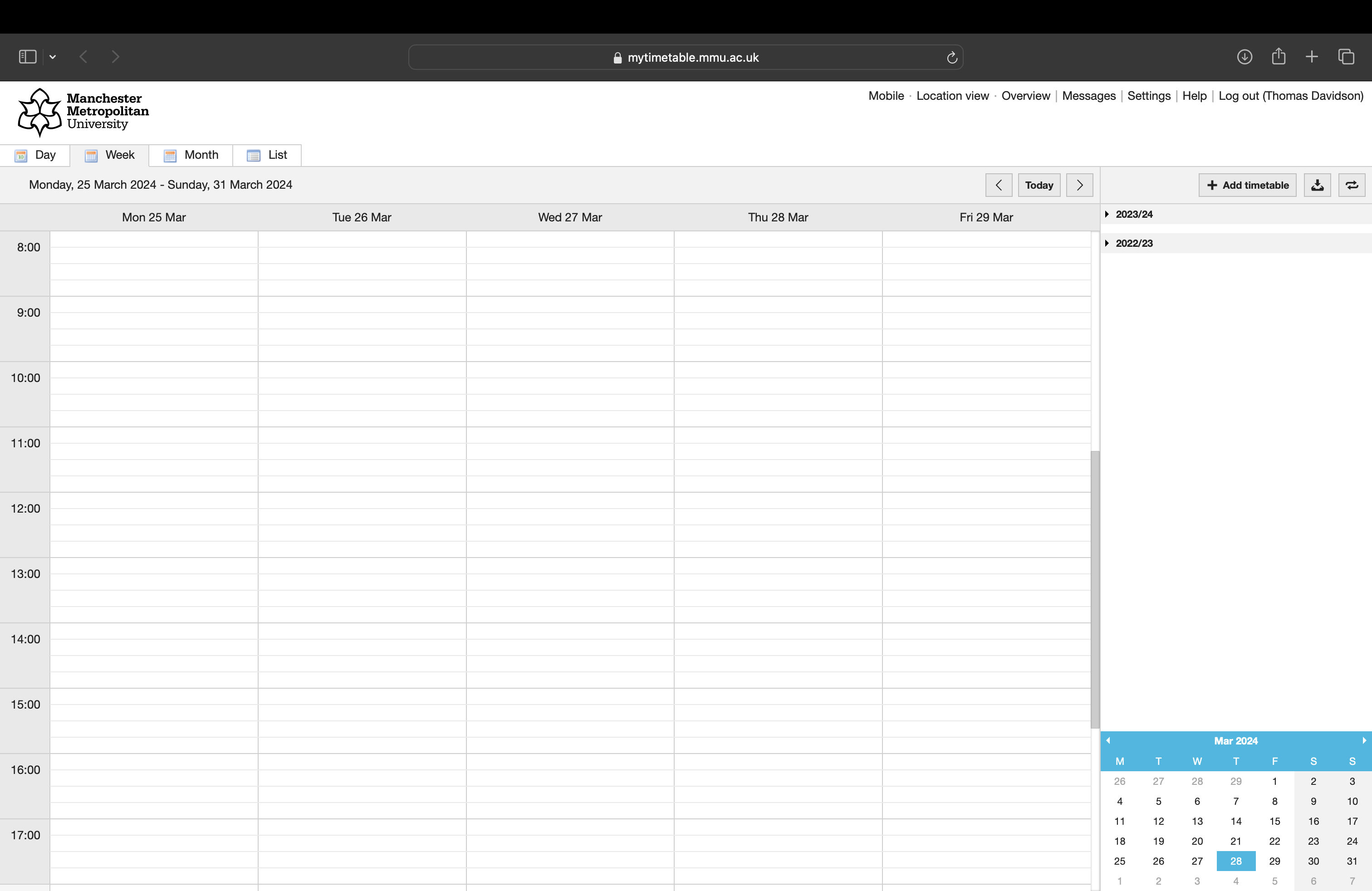
Go to your MMU Timetable through the MyMMU portal.
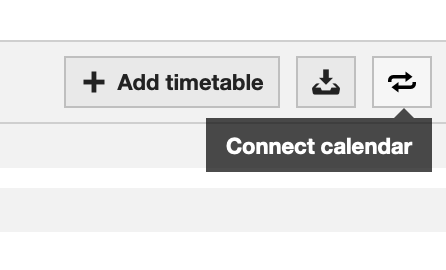
In the top right corner click the Connect Calendar button.
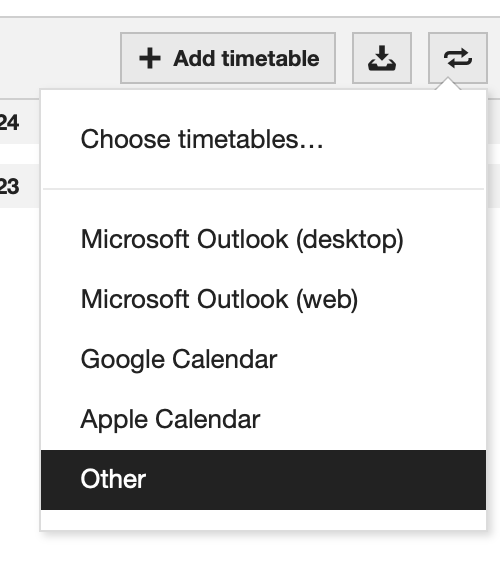
Click the Other option. The other four options above this will allow you to get the link required aswell. These options will also show you how to add this link to your chosen calendar. However, to get the Beautified calander you will need to copy the link given and paste this in the input box on the Home page.
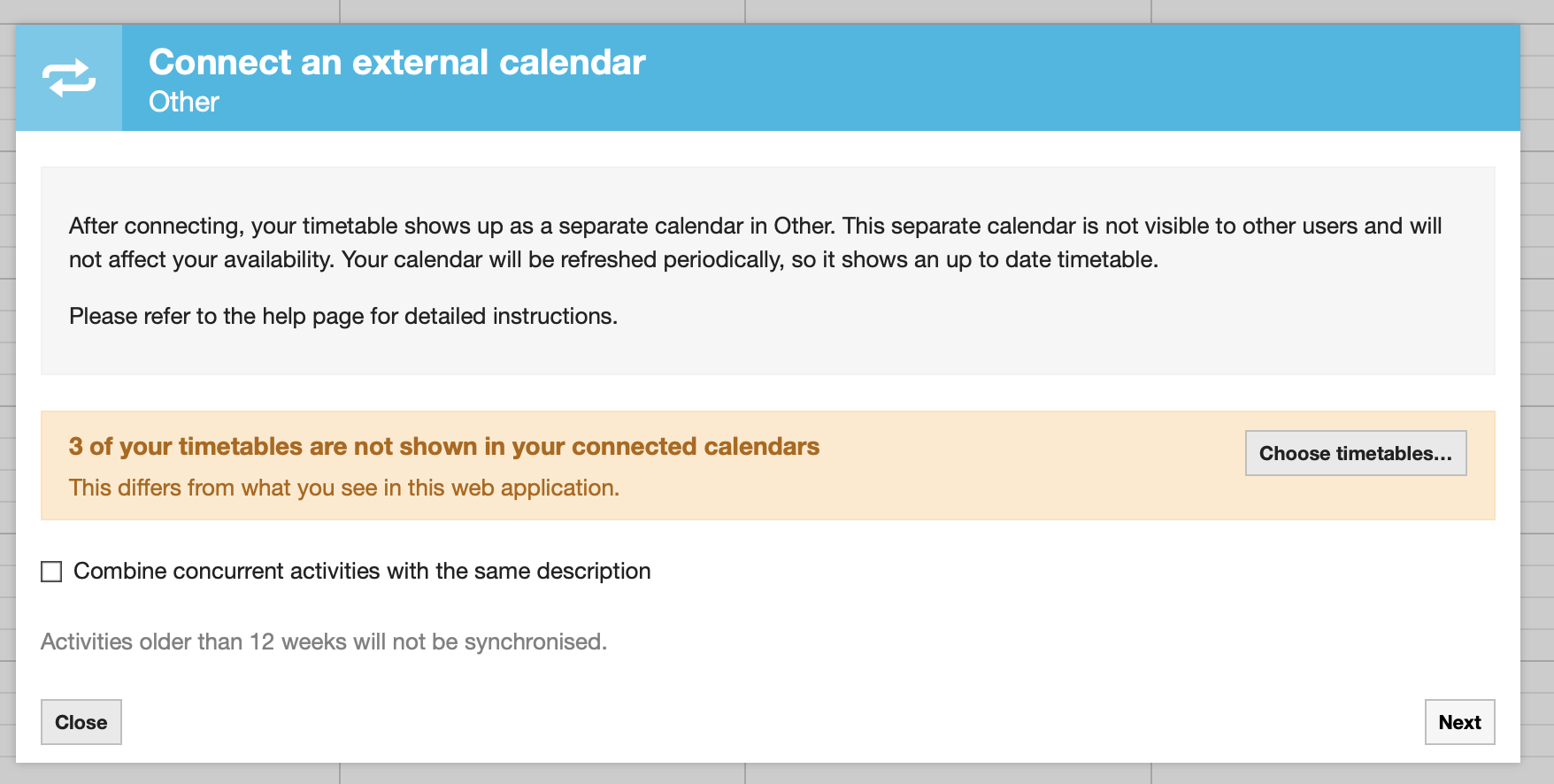
Click the Next button.
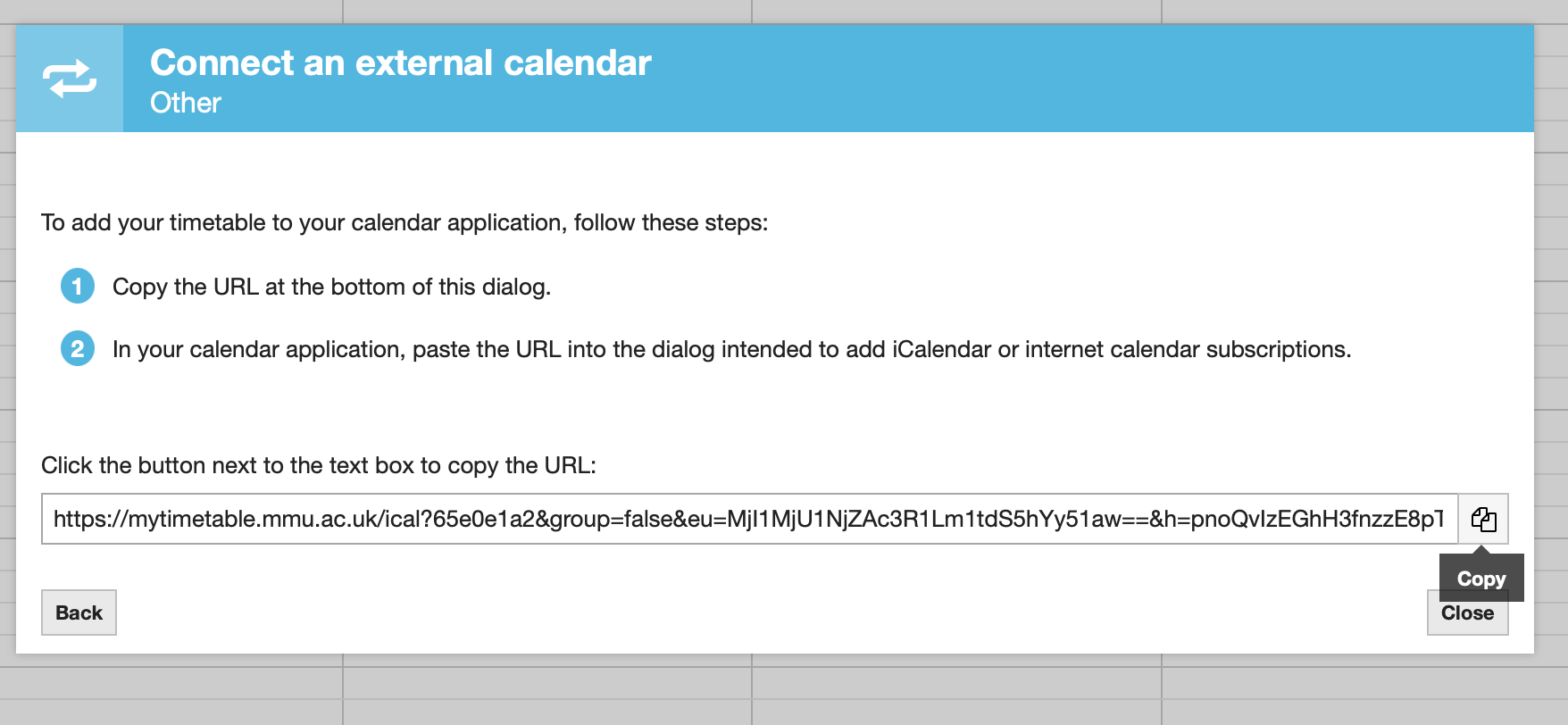
Copy the link provided and paste into the input box on the Home page.
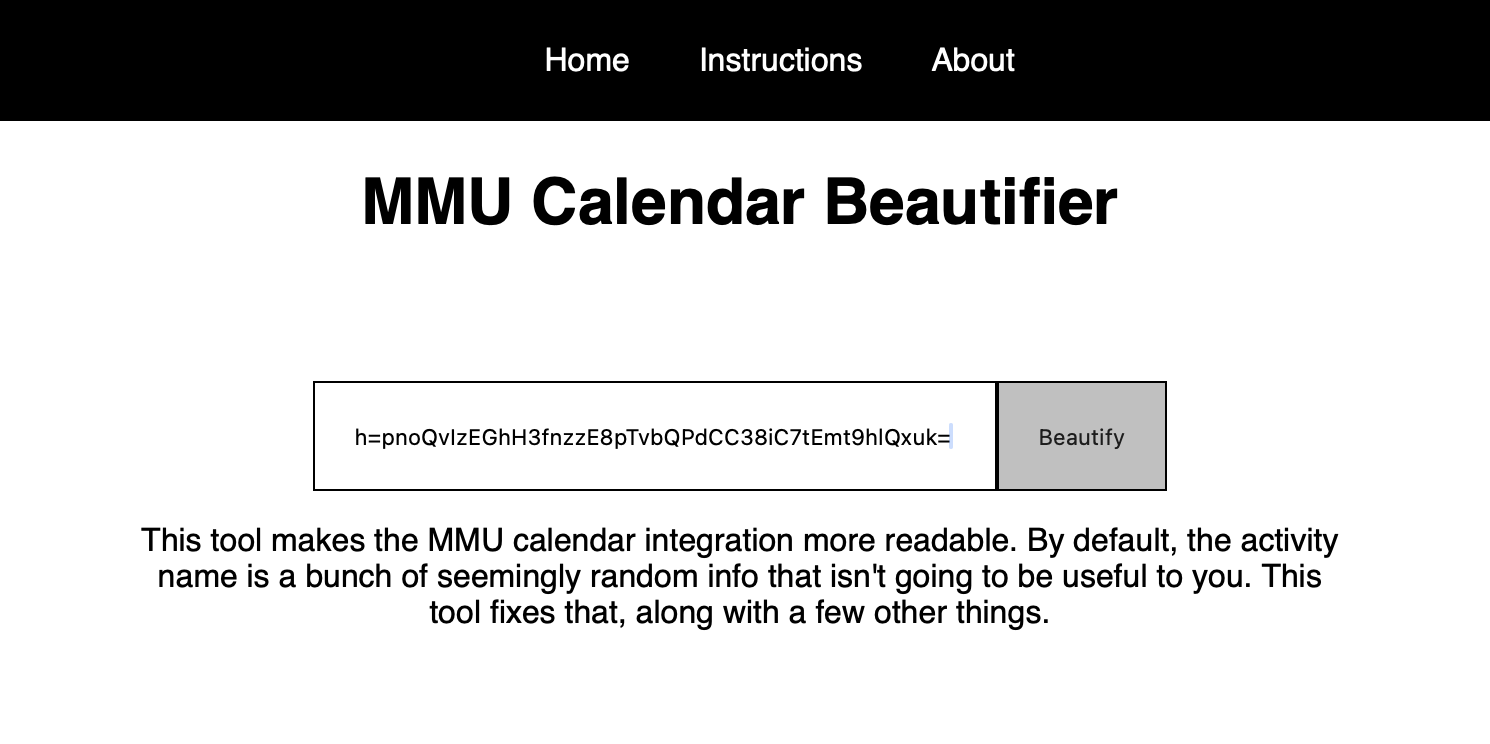
Paste your link into the input box and click Beautify.
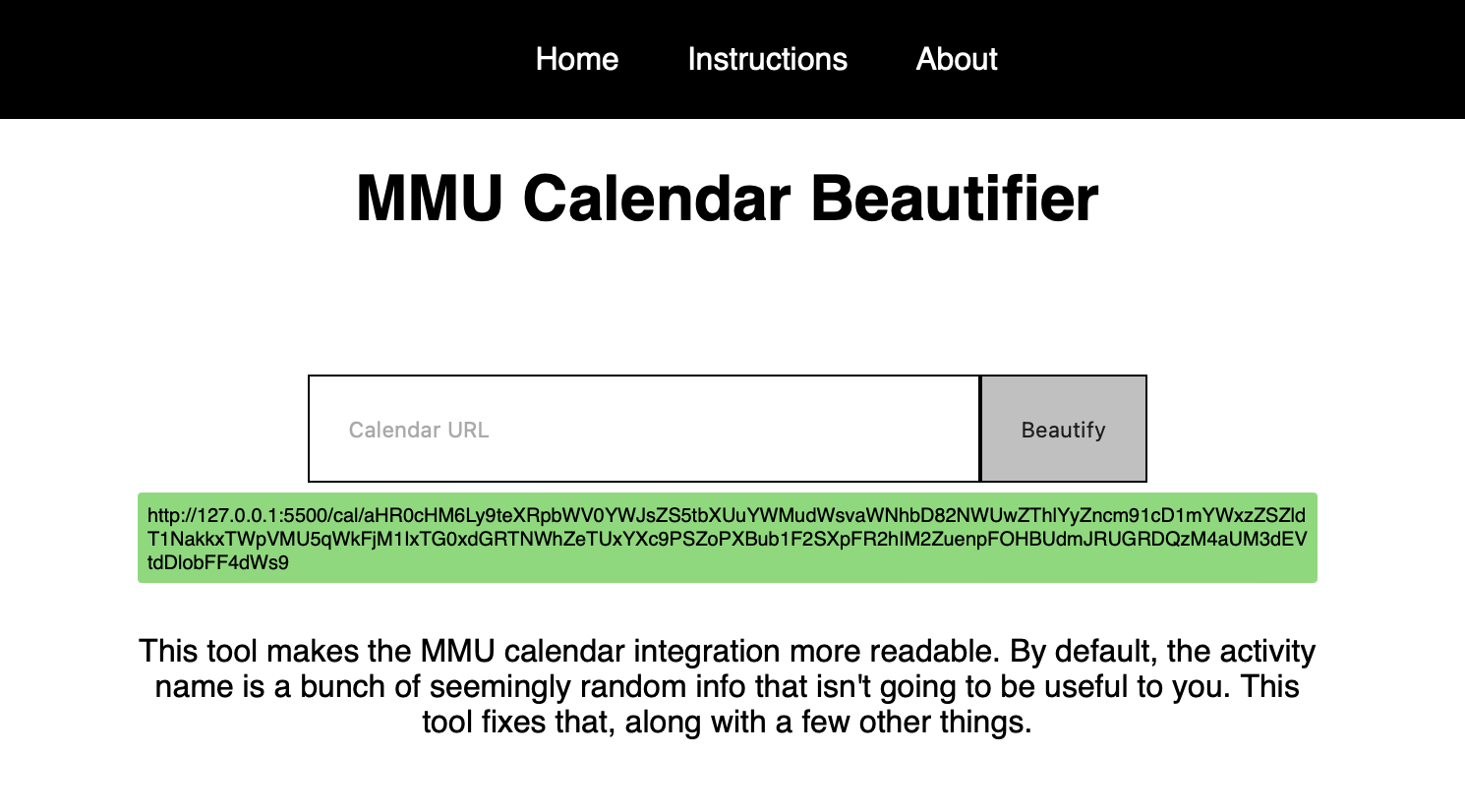
Copy the link in green box and follow the steps on the Timetable website for adding your timetable to your prefered calander but use the new link given in the green box.